
How do I find a patient or a study?
Start on Patients when someone calls about their scan. Start on Study decisions when you already have the accession.
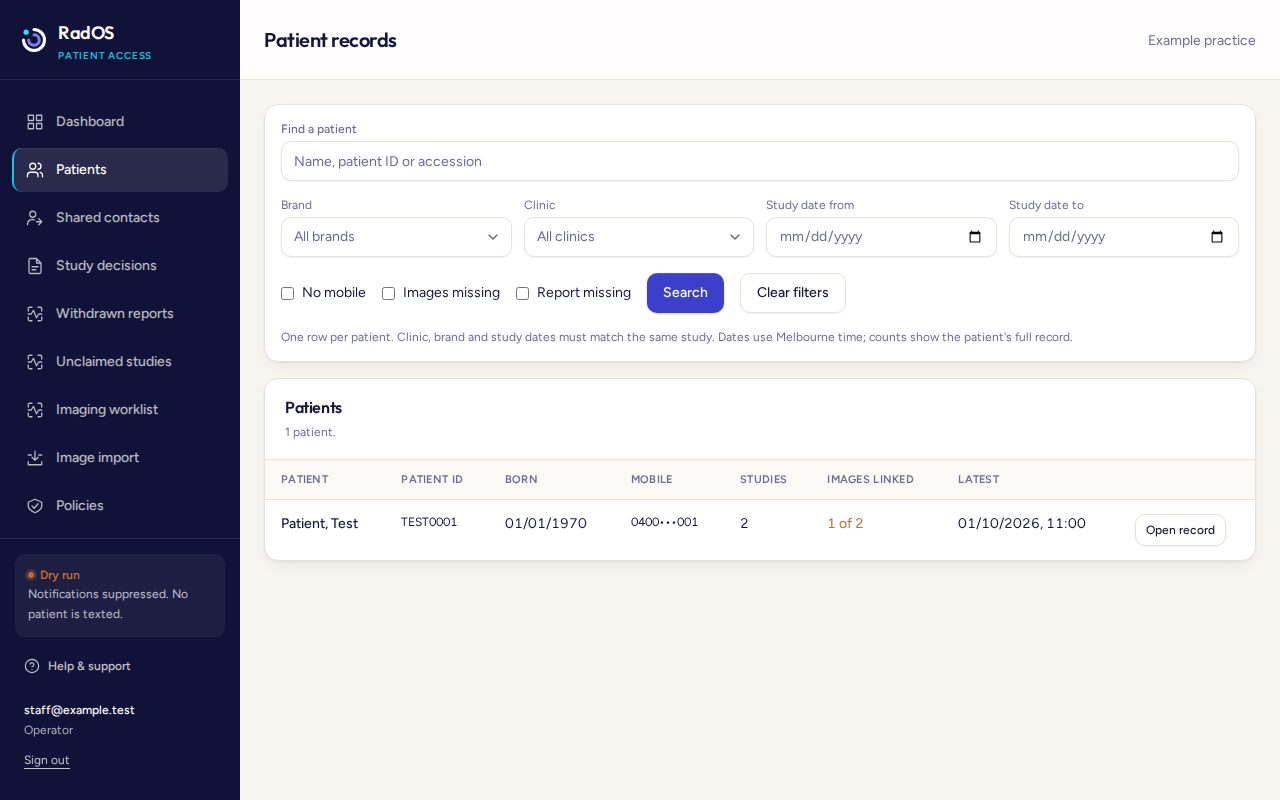
- Open Patients.
- Search by name, patient ID, or accession. Brand, clinic, and study dates have to match the same study. Dates use Melbourne time.
- Optional filters: no mobile, images missing, report missing.
- Open the record. You can see whether a mobile or email exists. You do not see the full address.
- On the record, search that person's studies by description, accession, clinic, or referrer. Missing images or report limits the list to studies that need a look.
Open the release decision
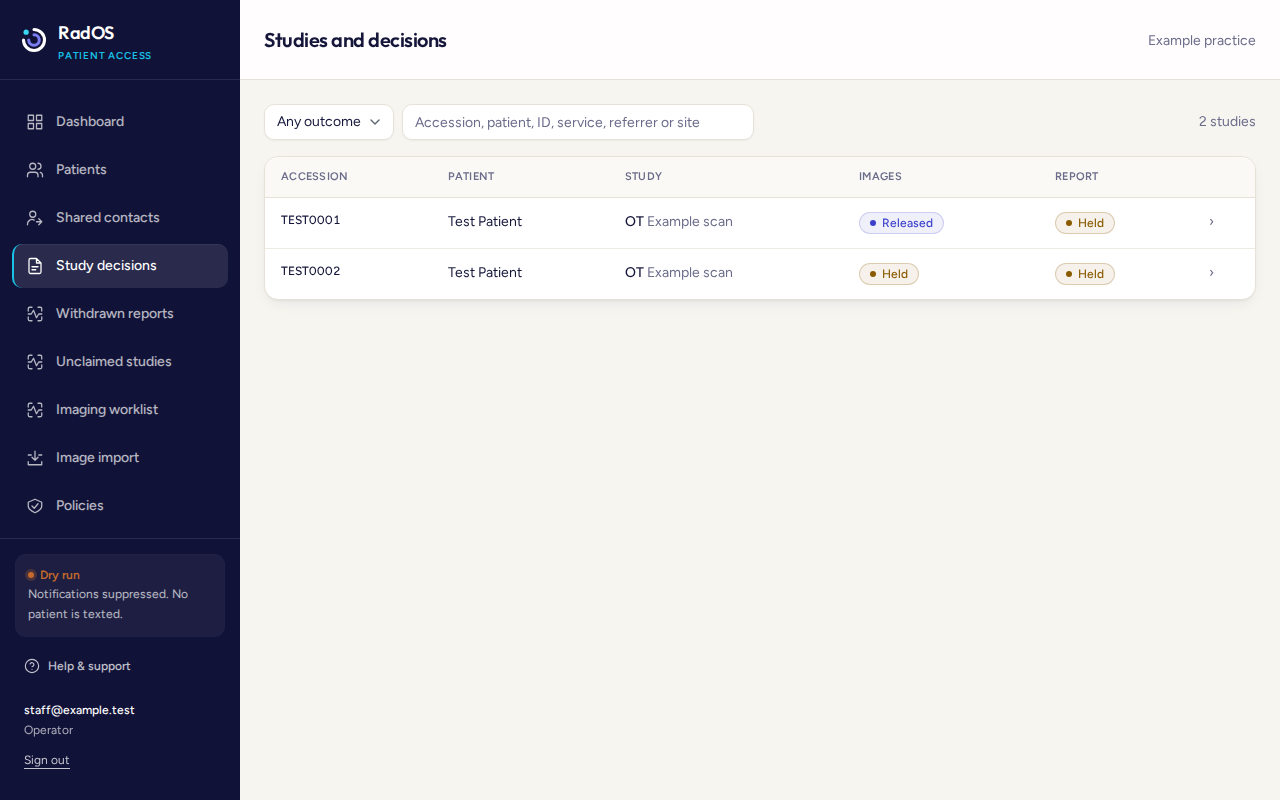
- Open Study decisions, or from the patient record choose Release details on that study.
- Filter by Released, Held, Blocked, or Overridden. Search accession, patient, ID, service, referrer, or site.
- Open the row. The panel shows the image decision, the report decision, the reason, any active override, notifications, and the history.
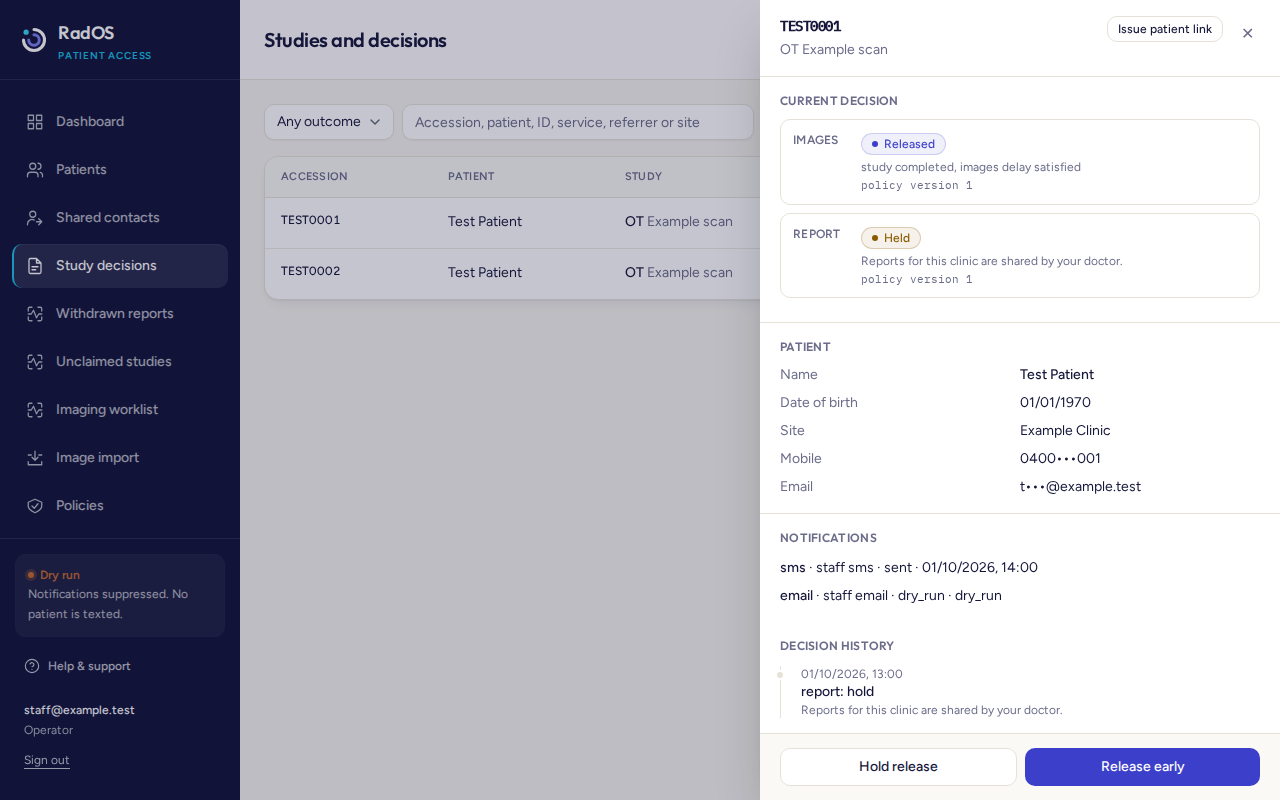
Two different wordsReport status is what the clinical system last sent, such as preliminary, final, or amended. The release outcome is what the portal will show: released, held, or blocked.